What You Can Do
Use your own account and keep the right business context while you work.
Before You Begin
The account must own the Vendor or have an active authorized membership. Each person uses their own account.
If you have only submitted business interest or a claim, wait for Nommad to confirm the business assignment and the account you should use. Manual follow-up comes before workspace sign-in; the submission confirmation alone does not provide access.
How To Do It
- Open Sign in. Enter your email and password, then choose Sign in. Follow the account verification screen if one appears.
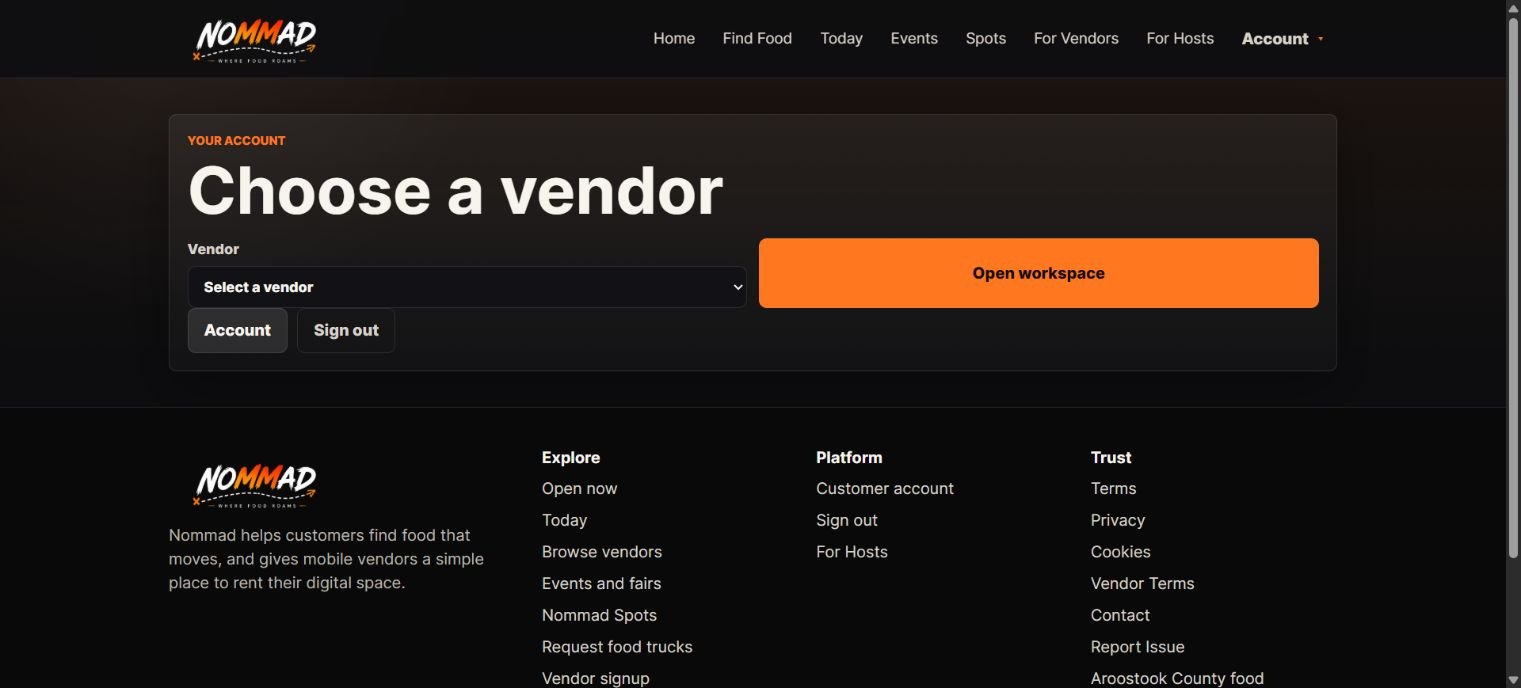
- If Choose a Vendor appears, use Vendor to select the business and choose Open workspace. Nommad can instead reopen your saved permitted business. Check the name in the workspace header before saving.
- To choose another authorized business, open the Vendor selection page. QR Center also offers Change Vendor when multiple businesses are available.
- Use My Account for personal account settings, not to change the business identity. Use Sign out when finished on a shared device.
What Happens Next
The selected business determines the records and permissions you see. Switching businesses does not copy menu, stock or other records.
Sign out opens a confirmation page. Choose Sign out there to complete logout; a filled confirmation page is not proof that another person can safely use the session.
Important To Know
A URL containing another business name does not authorize access. Removed membership, suspended accounts and archived businesses can prevent access.
Do not refresh an editor just because an access check is taking time. Preserve the page and use the recovery controls or Support when offered.
Common Problems
- No Vendor is available
- Confirm the account and ask the owner or Support to check the assignment.
- A section is unavailable
- Your membership permissions or current paid access may restrict it.