What You Can Do
Keep your current vendor-reported location, hours and serving status accurate.
Before You Begin
You need permission to update status and current paid workspace access. Confirm your selected business and the displayed time zone.
How To Do It
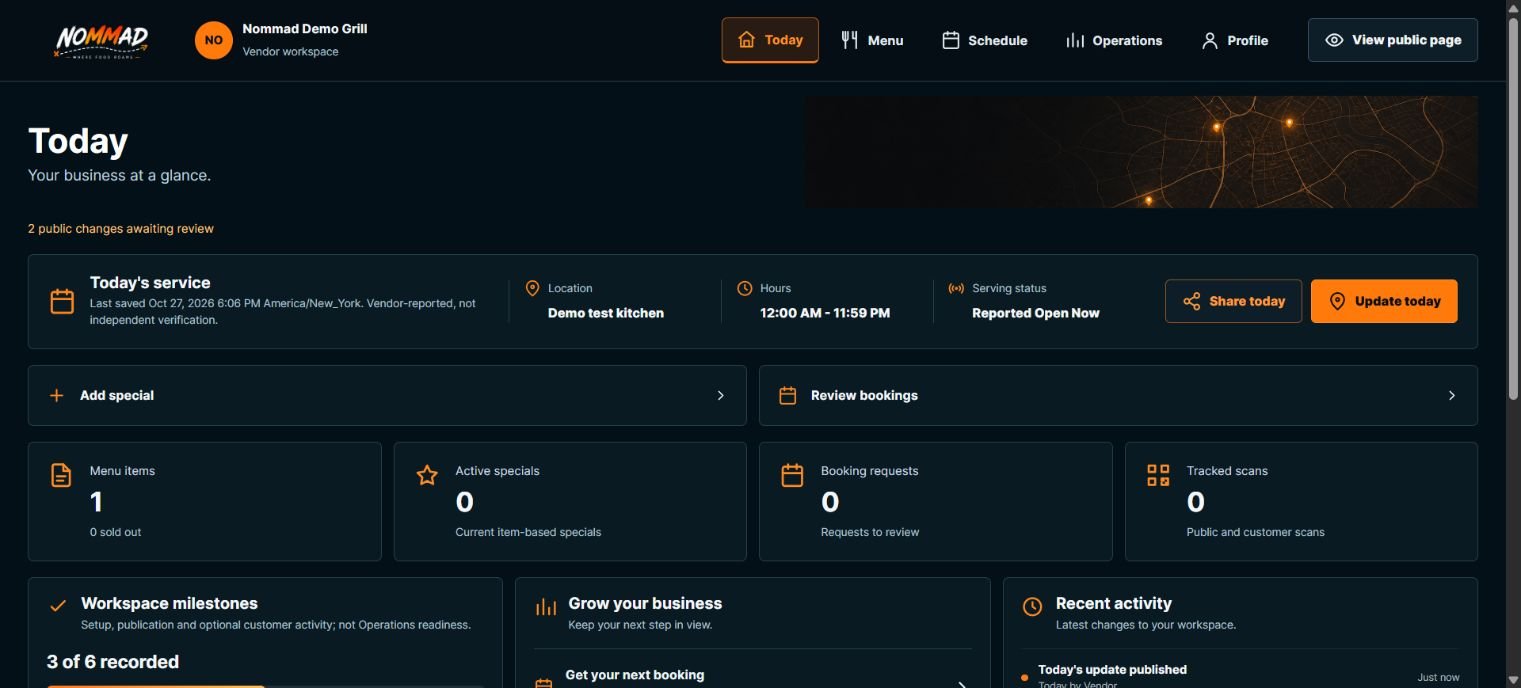
- Open Today and review Today's service: Location, Hours and Current status. The Reported and Last saved line identifies the original Vendor report.
- Choose Update today. Select the applicable status and enter an accurate public serving location for Open Now, Opening Soon or At Event. Hours are optional: a current location-only Open report shows Hours not provided, not an invented schedule. Not Serving Today needs no invented location or hours. Do not use Use My Location unless you intend to share your actual location.
- Review Customer preview, then choose Publish Today's Update. Wait for confirmation, revisit Today and check Current status and Last saved. If the save outcome is uncertain, keep the entries and use the same Publish button again to check that request before retrying. Do not create another update just because a response was lost.
- Choose Share today. Nommad checks whether your public profile is available. If sharing is blocked, read the reason and choose Review Profile visibility. For an eligible page, choose Share for the browser's sharing flow or Copy Link for the public URL. Copy Post copies the editable message instead. Editing this temporary message does not change your saved business information.
- Check the outcome shown: copied, browser share completed, cancelled or failed. Unsupported native sharing falls back to copying the post; a blocked copy shows recovery guidance. Browser completion is not confirmation that a recipient received your post. Do not share a private editor, claim or account verification URL.
- Use Schedule for planned future or recurring stops. Review public information after a normal refresh; a saved report, public schedule, profile publication, menu publication and booking availability are separate.
What Happens Next
Current status accounts for the saved hours without changing the original report. An elapsed end time becomes Closed; Opening Soon becomes Open when its stated start arrives. A report without an end time has no invented closing time. Refresh to review current information. Vendor reports are not independent verification of physical service.
Important To Know
A future schedule is a plan, not a current serving report. A service area is not your current location.
Not Serving Today appears as Offline. It does not hide the profile, approve content, publish a menu, make a booking or change billing.
A live approved profile can remain shareable while separate edits await review. An unapproved, hidden or otherwise blocked public profile is not offered as a working public share destination.
Shared wording describes public details and updates; it does not promise that a menu has been published.
Add display special opens the Special message in Menu > Live updates. Save update saves that message under the current Instant updates setting; it does not create an item-based Special. Return with Today. Use the Live updates guide before deliberately showing or publishing a message.
Review bookings opens Schedule > Bookings. Customer booking requests and Vendor invitations remain separate. With no open customer requests, Review booking preferences opens the existing settings directly; Cancel returns to Bookings, then Today returns to the dashboard.
Current item specials counts active, unarchived records within their saved date range, not display messages. Open booking requests counts New, Pending and Contacted customer requests, not organizer invitations. Profile QR scans is the cached lifetime public-profile QR total, not today's scans, unique people or all QR destinations. Unavailable is not a measured zero.
Workspace milestones describe recorded fields and optional activity, not publication permission or mandatory setup. Menu items refers to catalog items; a business using only uploaded menu artwork need not add catalog items just to fill this milestone. The QR milestone requires a saved mapping, not a generated fallback link.
Common Problems
- Customers see old information
- Refresh the public page and check Last saved, the current report and public schedule. Offline saved information is not proof of current availability. Correct the appropriate source rather than only changing the service area.
- Today was updated in another tab
- Your entries remain visible. Reload, review the current report, then re-enter any changes you still intend to publish.
- Save outcome is uncertain
- Use the same Publish button to check the original request. If Nommad confirms it was not saved and you have newer entries, review those entries and choose Publish again when prompted.
- Sharing or copying failed
- The post remains available. Try Copy Link, or select and copy the message manually. A cancelled native share is not reported as completed.
- The update is disabled
- Check status-update permission, access and any page error before retrying.