What You Can Do
Compare the saved plan with manually observed actual quantities, then lock a reviewed closeout.
Before You Begin
Finish counting prepared, sold, wasted and remaining items. Keep recorded expenses and stock movements separate. Finalization locks saved actuals.
Only an existing Draft dated today or earlier in the business display time zone can be finalized. A future-dated summary can retain saved actuals but does not offer Review & finalize shift yet. For fictional closeout practice, start a separate clearly labeled current-day service; do not change a real service date just to expose finalization.
How To Do It
- Open Operations > Planning > Daily Summary and choose New Summary.
- Choose Source plan / service or leave it unlinked. Check Date, Shift name, Expected customers and Planned quantity. A linked plan copies the base forecast, not its buffered preparation target. Choose Create Summary.
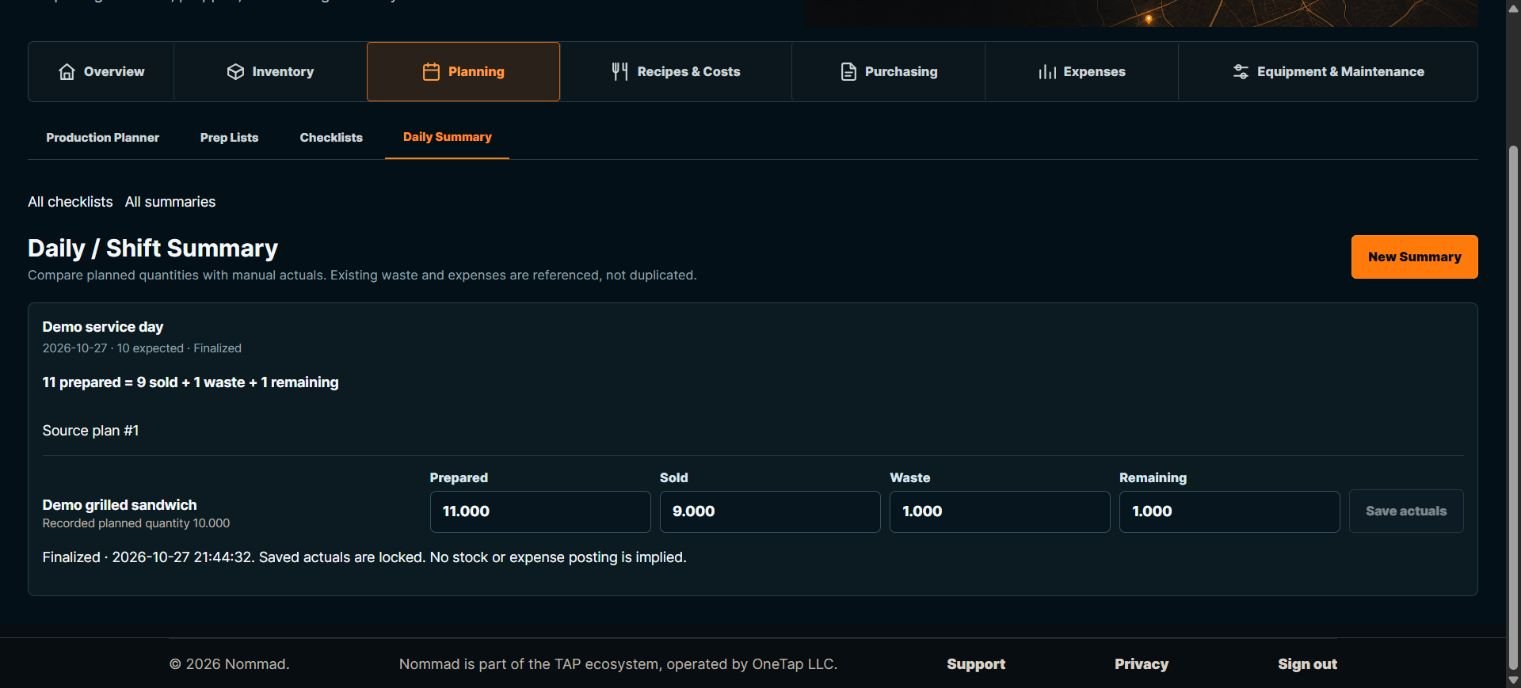
- For each item, enter Prepared, Sold, Waste and Remaining as actual observed quantities. Choose Save actuals.
- Review the saved figures. Prepared must reconcile with Sold + Waste + Remaining before finalization can be trusted.
- Open Review & finalize shift. Read the saved quantity breakdown, select I have reviewed these saved quantities., then choose Finalize shift.
- Revisit the summary and confirm Finalized and locked inputs. If a finalized record needs correction and no authorized correction control is offered, contact Support with the summary context; do not create a misleading duplicate.
What Happens Next
The summary retains manual actuals and its source-plan context. Saving actuals and finalizing do not automatically adjust stock or create another expense.
Important To Know
Example: base forecast 10, buffered target 11. Record 11 prepared = 9 sold + 1 waste + 1 remaining. The planned quantity remains 10.
Sold quantity is manually entered; it is not a payment integration or proof of revenue received.
Completed prep, completed checklists, a finalized closeout and physical stock usage are separate records.
Common Problems
- Finalize is unavailable
- Check the saved service date first. A future service remains Draft until its date arrives. For a current or past Draft, save the actuals, reconcile the quantities and acknowledge the reviewed values. Do not alter the service date or create a duplicate to bypass this rule.
- The summary is not in this service view
- Check All summaries or Open saved service work and the source plan/date.
- Inputs are disabled
- The summary is finalized. Use Support for a justified correction instead of bypassing the lock.