What You Can Do
Turn expected sales into buffered ingredient requirements and reviewed prep and shopping proposals.
Before You Begin
Create sellable Menu items, recipe links, positive yields and reliable Inventory amounts/units. Add explicit recipe Prep instructions or appropriate recipe-linked prep templates for real preparation work.
How To Do It
- Open Operations > Planning > Production Planner and choose + New Plan.
- Enter Plan name, Date, Expected guests, Planning mode and Global buffer %. Choose a Linked service or Custom service. Review Status and Notes, then choose Create plan. The successfully saved plan opens in Plan / Date.
- Use Plan / Date to confirm or switch the saved plan. If it shows Choose a saved plan, select one before expecting its forecast or requirements to appear. Open Plan settings to revise Expected customers, Planning mode or Buffer %, then choose Save plan settings. Linked service has its own Save service link action.
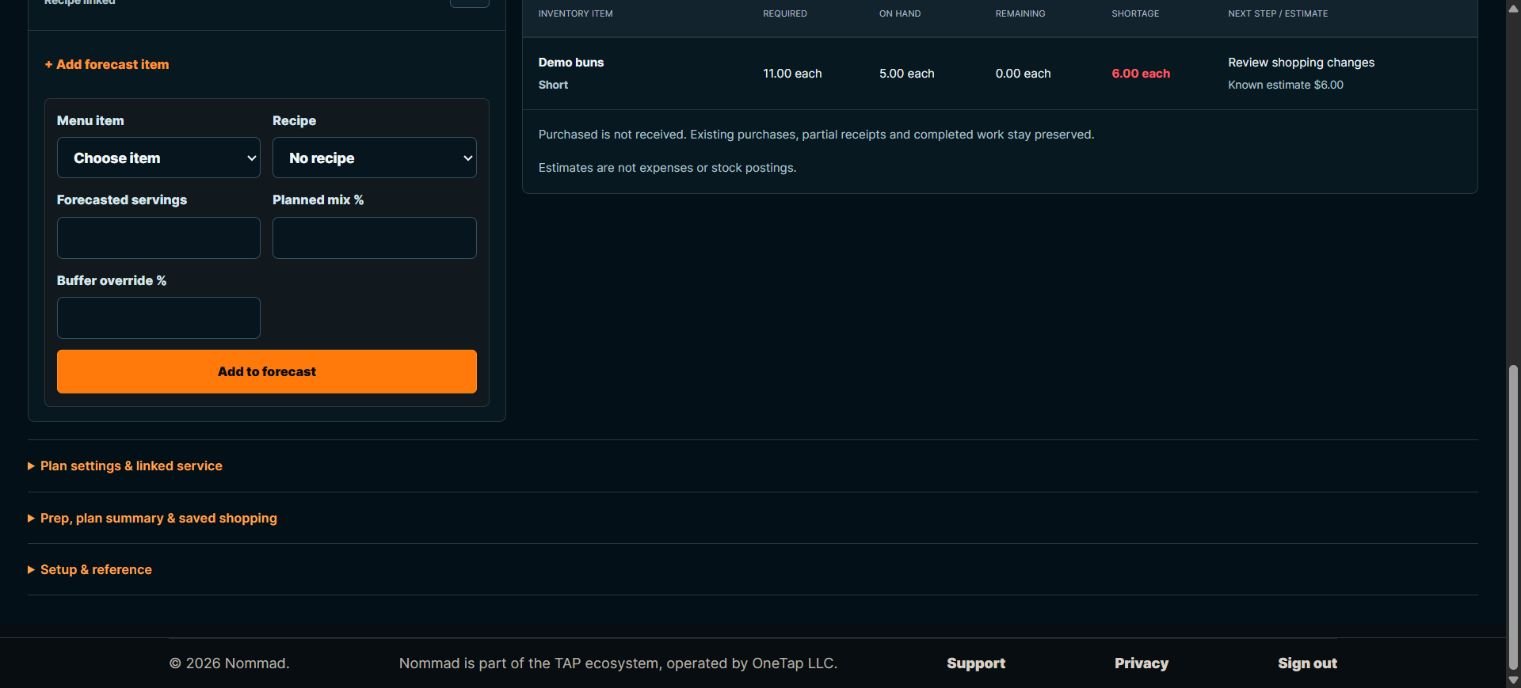
- Choose Add forecast item. Select Menu item and Recipe. In Servings by item, enter Forecasted servings. In Guest mix percentage, enter Planned mix %; the total must equal 100%. Add a Buffer override % only when that item needs a different buffer. Choose Add to forecast.
- Review Sales Forecast and Inventory Needs. Switch Shortages / review, Covered or All. Missing recipe links or conversions need attention before a requirement can be trusted.
- Choose Review shopping changes or Review prep in the plan decision summary. The expanded prep section also offers Review prep changes for the same review. Inspect each Added, Updated, Preserved or no-longer-needed proposal and its saved counterpart. Choose Apply reviewed changes only for the work you intend to save.
- Expand Prep, plan summary & saved shopping if it is collapsed, then choose Open plan-linked shopping or Open plan-linked prep to continue. Applying a review can collapse this section again. After editing the plan, stock or recipes, review changes again; do not assume saved downstream work has already changed.
What Happens Next
The saved forecast and buffer calculate requirements. Applying reviewed changes creates or updates the relevant open work; it does not receive stock, post an expense or overwrite completed work automatically.
Important To Know
Expected guests are not automatically servings in Servings by item mode: enter the item forecast. Percentage mode requires a complete 100% mix.
Buffered forecasts and ingredient needs can be fractional, including each. For example, 25 servings plus 10% can remain 27.5 even when Planning target (units) shows 28. Review Buffered units and the actual requirement rows; do not assume every ingredient or purchase quantity has been rounded. Review whole-item or whole-pack quantities deliberately before buying or preparing.
Example: 10 one-bun sandwiches plus 10% buffer require 11 buns. Five on hand leaves six short. A $1 bun gives a $6 shortage estimate, not a $6 expense.
Purchased but unreceived goods are not On Hand. Unknown costs stay Unknown. Existing purchases, partial receipts, manual changes and completed tasks must be reviewed and preserved.
The planning tool is available without enabling the separate, currently disabled Batch Production/stock-lot tools.
Common Problems
- The Planner looks empty
- Check Plan / Date. Choose a saved plan if none is selected; a new plan needs saved forecast items before it has ingredient requirements.
- No calculated needs
- Link the forecast item to a recipe with valid Inventory ingredients and enter positive demand.
- Mix does not calculate
- Make the saved percentages total 100% and check expected guests.
- Review says saved inputs changed
- Refresh the review and inspect the new proposal before applying it.
- An older recovery snapshot was not applied
- Saved records are shown, and the older snapshot was preserved separately. Contact Support if you need to recover unsaved entries. Do not save unrelated item editors or clear all browser data to dismiss this notice.